

Rolling forecast: how to run monthly reviews in FMS
A guide to rolling forecasts in FMS: roles, monthly forecast input and review, forecast vs. budget reports, FP&A approval and reforecast automation.
Updated on
A rolling forecast is a periodic review, usually monthly, of projected spending through year-end. The annual budget is set once and serves as the baseline; the forecast combines what has already been spent (actuals) with what is still expected in the remaining months (year to go, or YTG). That way FP&A sees every month where the year is heading, not just what was planned months ago.
In spreadsheets this cycle tends to stall: each department emails back a file, FP&A consolidates different versions, validates the numbers by hand and races the deadline, with a real risk of errors and of losing track of which version is right. FMS was built to solve exactly this problem for the budget, and the same approach was extended to the forecast: a timeline with a deadline for each round, one platform to enter and submit numbers, and company-wide consolidation in a single click.
This guide explains how the forecast cycle works in FMS, from the point of view of the people who enter the numbers and of FP&A. For the annual cycle, see the guides to OpEx budgeting and CapEx budgeting.
Roles in the forecast cycle
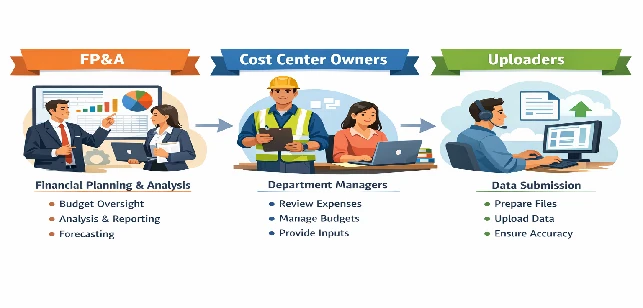
The cycle involves two groups of users:
- Uploaders and Cost Center Owners: enter forecast values for their cost centers and submit them for approval.
- FP&A / Administrators: open each forecast round, set the deadline, analyze submissions, and approve or reject the forecast for each cost center.
How the review process works
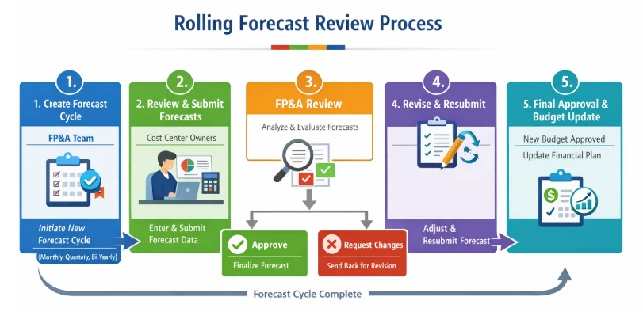
For each round (monthly, quarterly or semi-annual), FP&A opens a new forecast process. Uploaders and Cost Center Owners update their projections and submit them for review. FP&A analyzes them: if approved, the update takes effect in the rolling forecast; if changes are requested, the forecast goes back to whoever entered it, who adjusts and resubmits.

Part 1: Forecast input (Uploaders and Cost Center Owners)
Open Forecast Input
In the side menu, open Rolling Forecast and choose Forecast Input. This is where you create, review and submit your entries.

Step 1: Create an entry
Click the Create + button.
Step 2: Enter your forecast
- Under General Information, fill in all fields.
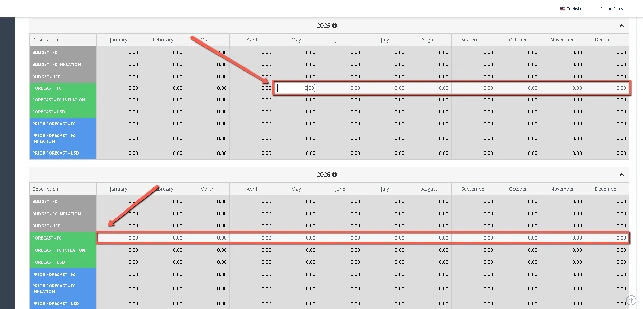
- At the bottom of the screen, enter the values for each month of each year in the projection.
Step 3: Save
- Click the Save button.
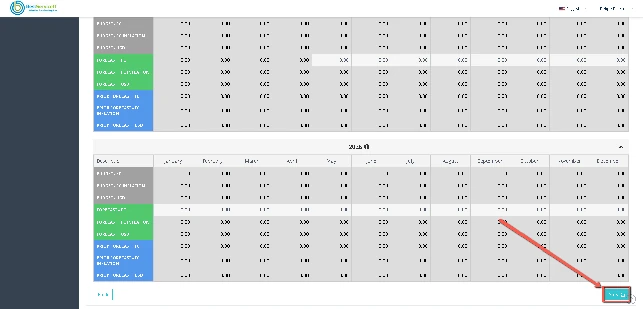
- Write an observation and choose Save, to keep editing later, or Save and submit for review, to send the entry to FP&A.

Forecast vs. budget reports
On the Forecast Input screen itself, the view dropdown switches how the data is shown and lets you compare the forecast with the budget and with the prior forecast. In the cost center views, the grouping can also be done by other properties.
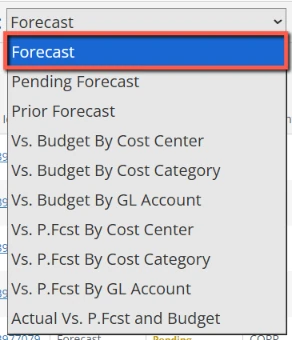
| View | What it shows |
|---|---|
| Forecast | Every forecast entry for the year and its status, in a consolidated view. |
| Pending Forecast | Only entries still in pending status, to track what is awaiting review or approval. |
| Prior Forecast | Brings together year-to-date actuals (YTD), the previous month's forecast and the current projection to year-end, to compare performance with the prior projection. |
| Vs. Budget By Cost Center | Forecast minus budget, by cost center. Highlights deviations and helps control spending by area. |
| Vs. Budget By Cost Category | Forecast minus budget, by cost category. Shows which types of expense are above or below expectations. |
| Vs. Budget By GL Account | Forecast minus budget, by GL account, to analyze variances at the accounting level. |
| Vs. P.Fcst By Cost Center | Current forecast minus prior forecast, by cost center. Shows how each area's projection changed. |
| Vs. P.Fcst By Cost Category | Current forecast minus prior forecast, by cost category. |
| Vs. P.Fcst By GL Account | Current forecast minus prior forecast, by GL account. |
| Actual Vs. P.Fcst and Budget | Compares actuals, the forecast and the original budget side by side. |
Reviewing a pending forecast
In the Pending Forecast view, click the ID of the entry you want to review. On the editing screen:
- Click Rows Configuration and select FC - Functional Currency and FC - Functional Currency (With Inflation). If needed, also add the base currency to separate the currencies in the forecast columns.
- Enter the forecast values in the Forecast - FC row.
- Click Save.
- Fill in the observations field, which is required to complete the review.
You can save your changes and come back to them before submitting. When you click Save and submit for review, the forecast becomes available for FP&A approval.
Submitting your forecast for FP&A review
- On the Forecast Input screen, select the Pending Forecast view.
- Select the forecast IDs you want to send to FP&A.
- Click Send to review (FP&A).
Variance commentary and actuals
Besides forecast input, FMS has modules that give the forecast context:
- Forecast Variance Commentary: a grid where each row combines company, cost center, commentary and monthly forecast values. It is used to document and track the explanation for each relevant deviation, keeping it traceable for audit.
- Actuals Data Load: actuals are synchronized automatically in scheduled windows, typically overnight. When data needs refreshing outside that window, users can trigger synchronization manually, choosing countries, ledgers, year, months and whether to extract history.
- Actuals Line Items (KSB1): a detailed, line-item view of actuals (company, cost center, GL account and so on), for analysis and reporting only. It is updated by the overnight processes and does not allow manual synchronization.
Part 2: Forecast management for FP&A
Start a new forecast process
- In the side menu, open Rolling Forecast and choose Forecast Input.
- Click Start new forecast process.
- In the window that opens:
- select the round the forecast will be created for;
- set the deadline (day and time) for users to submit and review their entries;
- click Initiate +.

If a process is already running, the system warns that starting a new one deactivates the old one. When it finishes, FMS returns to the forecast management screen and confirms the new round, with its deadline shown.

Approve or reject forecasts
- In the side menu, open forecast management and choose Review.
- In the Review screen grid, see the forecasts submitted for review.
- Select the IDs, pick the action in the Action field (approve or reject) and click Execute.

Forecast automation (reforecast)
Forecast automation reconciles planned and actual spending, keeping the forecast aligned with the budget and the target.
Throughout the year, actuals are updated as expenses are recorded. For future months (YTG), the system uses forecast values. Together they make up the projected total for the year, which is compared first with the initial budget and then with the target. The target is the budget after the changes and adjustments applied over time.
Process flow
- Set the planned spending for each month.
- Set monthly spending targets, which serve as the reference point for tracking performance throughout the year.
- Adjust forecast values up or down whenever needed, working toward zero variance against the target.
- Once the variance reaches or approaches zero, update the target with the new values.
How variance is calculated
Variance compares total expected spending with the approved target:
Variance = (actuals to date + forecast from the current month through December) − target
The result shows how far the area is projected to land above or below plan. The goal is zero variance, meaning actuals plus forecast are fully aligned with the target. You can also list the forecast by cost center in the Totals by Cost Center module.
Manual changes
In the monitoring module, click Manual Changes. This screen centralizes every manual adjustment made to forecast values, month by month, by cost center and GL account. It shows who made each change, what was modified and when, and lets you undo specific changes.

Update the target and check its history
Update Target replaces the target values with the current forecast values:
- Select the rows to update.
- Click Update Target. The system shows a validation message when it finishes.
- To see the log of updates, click Targets History.
The history screen is the audit trail for targets: it shows who created or modified each target, when, and the monthly values set for each cost center and GL account. When needed, specific changes can be reverted.

Requirement to apply a reforecast
To use Apply Reforecasting, first enable the Calculate or Allow Extra Credit / Debit checkbox. Without one of them, the system shows an error.
With Allow Extra Credit / Debit enabled, the system can go beyond the cost center and GL account limits and automatically calculates the excess amount.
Line details
Select a row in the grid and open Details to see information that is not visible in the grid, such as values and dates. The details screen compares budget, target, actual/forecast, forecast preview and reforecast variance month by month, along with the resulting credit or debit, showing how the item's numbers are progressing.

Apply the reforecast
Apply Reforecasting confirms and saves the changes made on the details screen: the values adjusted in the forecast preview column replace the previous forecast and officially update the financial plan. Then use Update Target to carry the new values into the target.
Frequently asked questions
What is the difference between a budget and a rolling forecast?
The budget is set once a year and serves as the baseline. The rolling forecast is revised every round and combines actuals to date with the projection for the remaining months, showing how the year is likely to end.
How often is the forecast reviewed in FMS?
FP&A sets the cadence when starting each process: rounds can be monthly, quarterly or semi-annual, each with its own submission deadline.
What does zero variance mean?
It means actuals plus the forecast for the remaining months equal the target. That is the goal of forecast automation; once there, the target can be updated with the new values.
Can a manual forecast adjustment be undone?
Yes. The Manual Changes screen records who made each adjustment, what changed and when, and lets you undo specific changes. Target changes can also be reverted from the targets history.
What is the target in FMS?
It is the budget after the changes and adjustments applied during the year. The projected total (actuals plus forecast) is compared first with the initial budget and then with the target.
Want to know more about forecasting and reforecasting in FMS? See the forecast and reforecast page, learn about FMS or talk to our team.
Want to see FMS with your company's data?