

OpEx budgeting: how to run the budget cycle in FMS
How to structure the OpEx budget cycle in FMS: roles, approval workflow, entry by form, bulk input or Excel, deadlines, rounds, inflation and FX rates.
Updated on
An OpEx (operating expenses) budget is the plan for how much each area will spend to keep the business running: contracts, services, travel, licenses, people and other recurring costs. Every year, the FP&A (Financial Planning & Analysis) team has to collect these projections from dozens of cost centers, review them, consolidate them and approve the result on a tight deadline.
In many companies, this cycle still runs on email and spreadsheets. FP&A requests numbers from each manager, receives files in different formats, consolidates everything by hand and validates line by line. The process takes weeks, invites typing and formula errors, and creates the classic version-control problem ("which file is the final one?").
FMS (Financial Management System) was built to solve exactly this problem. It replaces spreadsheet exchanges with a structured cycle, based on three pillars:
- A defined timeline for the budget cycle, with deadlines for each stage.
- Standardized templates that each area downloads and fills in.
- A centralized platform for submission, review and approval, with no reliance on email.
As a result, FP&A can track and analyze the company's consolidated budget at any time, with a full record of who submitted, reviewed and approved each line. This guide shows how the cycle works in FMS, from data entry to final approval.
Roles in the budget cycle
FMS organizes budgeting around three roles, each with clear responsibilities:
| Role | What it does |
|---|---|
| Uploader | Creates, imports and reviews the budget items for their area and submits them for approval. The first line of control: makes sure data is complete and correct before management review. |
| Cost Center Owner | Reviews the budgets for their cost center and approves or rejects each submission, aligning the area's needs with the company's financial goals. |
| FP&A / Administrators | Have full system access and oversee the entire process: set deadlines, configure permissions and give final approval to the consolidated budget. |
Budget approval workflow
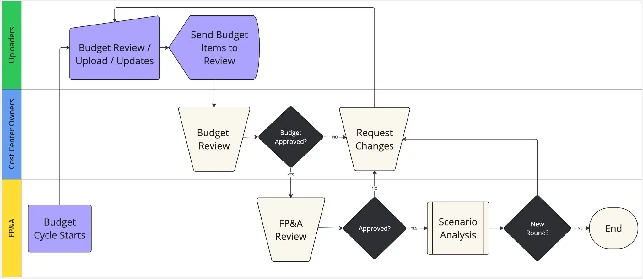
The cycle follows four stages:
- Process initiation. FP&A opens the budget cycle in the system, sets deadlines and makes the standardized templates available to each area.
- Uploader submission. Designated managers enter their budget proposals using one of three methods: single item creation, bulk input or Excel template upload.
- Cost Center Owner review. The cost center owner either approves the budget (which moves on to final review) or requests changes with specific comments (which go back to the uploader). The system notifies uploaders of pending items that need attention.
- FP&A final validation. The finance team performs a comprehensive review: final approval closes the cycle; further change requests restart the workflow.
Executive Dashboard
After signing in to FMS, users land on the Executive Dashboard, which summarizes the current cycle:
- Action Buttons: quick access to the main budget and forecast functions.
- Deadlines: budget and forecast due dates.
- Filters: refine the data shown on the dashboard.
- Budget Overview: total budget values by year.
- Variance Indicators: the variance between the PLTF (Prior Long-Term Forecast) and the approved budget.
- PLTF vs. Budget: a comparison of the long-term forecast and the budget.
- Budget Items: the budget items available in the current context.
How to enter the budget (uploader)
All data entry happens under Budget Planning → Budget Input – Cost Center.
The Budget Input screen
This screen brings together everything an uploader needs to track their submissions:
- Filters: by budget cycle, currency, cost center, segment and company.
- Submission methods: Create (form), Bulk Input (several lines at once) and Upload (Excel spreadsheet).
- Status of each item, showing its stage in the workflow: Pending / Rejected (waiting to be sent or fixed), In Review (with the cost center owner or approver) and Approved by FP&A (final stage).
- Progress tracker: Submissions In Progress (not sent yet) and Submissions (all budgets submitted).
- Approval table: lists every budget with checkboxes, status, rejection reason (when applicable) and the Send to review (CC Owner / Approver) button.
Create a single budget item
Use the form when you need to enter or adjust a specific line.
- Click Create+.
- Fill in the form. Required fields are marked with an asterisk (*):
- Identification: additional descriptions 1–3, business name*, GL account*, company* and intercompany*.
- Ownership and classification: cost center*, type of cost* (for example, contract) and responsible*.
- Financial and contract details: currency*, agreement duration (start and end dates), year adjustment (%), early termination fees and supplier.
- Amounts: monthly distribution by fiscal year. Each row is a fiscal year and each column a month; several years are shown at once, and fields showing 0.00 are unplanned amounts.
- Click Save. The item now appears in the grid on the Budget Input screen.
Create items with Bulk Input
Bulk Input lets you enter many lines quickly, directly in the system.
- Click Bulk Input+. The screen lists all previous bulk submissions.
- Click New Creation +.
- Choose the Monthly or Annual input mode and fill in the required fields.
- Click Add to insert the line. Repeat for the remaining lines.
- Click Import to validate and submit the lines.
Tip: uncheck Auto-Clear to keep the Information and Totals fields filled in for the next line.
Submit with the Excel template
Template upload is the most efficient route when the area already works in spreadsheets.
- Click Upload and, in the window that opens, click Click here to download the template.
- Macros are blocked after download. Use the How to unblock Excel macros? link in the upload window and follow the instructions.
- Fill in all the fields indicated in the spreadsheet and save the file.
- Back in the system, click Select file, choose the completed file and click Upload.
- The Validation Result screen shows the processed rows and any errors. Click Import valid rows to proceed with the correct rows only, then click Confirm. A processing screen is shown while the submission is validated.
Bulk-update the budget via Excel
To revise many lines at once, export what is already in the system, edit it offline and re-import it:
- On the main dashboard, click Export rows to Template. The file comes in the official submission format.
- Edit the values in Excel.
- Click Budget Upload and select the modified file.
- Check Replace existing so your changes apply to the current version.
- Click Upload and proceed to validation.
Note: always use Export rows to Template for this flow. The grid's Export to Excel button is meant for analysis and should not be used with Replace existing.
Manage submitted budgets
The Budget Input – Cost Center screen shows every available budget. From there you can:
- select lines with the checkboxes on the left and remove them with Delete checked items;
- export the current grid with Export to Excel;
- click the number in the Code column to open a budget in edit mode.
Edit mode shows the item's general information: title, justification, business name*, GL account*, company*, intercompany*, cost center*, type of cost*, responsible*, currency*, FP&A internal use, WBS name, technology, cost type/outage, contract, contract year adjustment, supplier and the agreement dates and fees. Use Save to store changes and Delete to remove the item (subject to permissions and status).
Send the budget for review
Once the items are entered or updated, the uploader sends the budget to the cost center owner for approval:
- In the pending view, check the budgets to send (pending or rejected).
- Click Send to review (Owner / Approver).
- Use the radio buttons to switch the view by status.
If a budget comes back rejected, the reason given by the cost center owner or FP&A is shown right in the grid. Fix the item and send it again.
Cost Center Owner review
Cost center owners see what is waiting for them on the Budget Input – Cost Center screen: the In Review radio button filters the budgets pending approval.
To approve or reject:
- In the Budget Planning menu, open Budget Review – Cost Center Approval.
- Check the budget(s) under review using the checkboxes on the left of the grid.
- In the action panel in the bottom-right corner, choose Approve or Reject.
- Click Execute. The system confirms the action.
When rejecting, FMS opens a window that requires a justification before proceeding. This documents the decision and keeps an audit trail of the workflow. Click Execute to confirm or Cancel to go back without changes.
Final approval by FP&A
The last stage is under Budget Planning → Budget Review – FP&A Approval, where authorized approvers validate what the cost centers have approved. The screen has three areas:
- Action panel: choose Approve or Reject and click Execute to apply the decision to the selected lines.
- Filters: narrow submissions by round, company, segment, cost center, GL account and intercompany. Active filters are shown above the grid.
- Budget grid: shows submissions with the status Waiting for approval (FP&A), one line per item.
To decide, check the lines, choose the action from the menu and click Execute.
Multiple FP&A groups
Companies with several business units or regions may have more than one FP&A group. To switch between them, click your user name, choose Change FP&A Group and select the group. From then on, the system shows that group's data.
Cycle setup: schedule, deadlines and rounds
Schedule
The OpEx Planning Settings → Schedule screen centralizes budget cycle configuration. It shows the current schedule for the selected budget year, with these fields:
- Uses Workflow: enables workflow-based approvals.
- Budget Year: the planning cycle reference.
- Budget submission deadline: the cut-off date for uploaders.
- Cost center owner deadline: the cut-off date for area reviews.
- FP&A review deadline: the cut-off date for final validation.
Use Edit to change the active schedule and Add to create a new one. When creating it, you can check Uses Workflow (enables the cost center owner and FP&A review deadlines) and Generate PLTF (generates the long-term forecast from the selected round for the new cycle).
The Previous Schedules section lists past cycles with their year, workflow status and deadlines. To reactivate one, click Activate in the Action column and confirm with OK: the selected schedule becomes the active cycle.
Deadlines
The deadline is shown on the Executive Dashboard for quick monitoring. The forecast deadline can be changed with the pencil icon on the Forecast Entries screen (under Rolling Forecast). When you choose Last day of the month, the deadline follows the last calendar day of each month (the 30th or 31st, for example) instead of a fixed day. See the rolling forecast guide for more.
Rounds
Rounds are the review and approval iterations of the planning process (budget or forecast). Each round is a stage for data adjustments, goal alignment and consolidation before final approval.
- In OpEx Planning Settings, open Round Management.
- Click Add + and enter the round description.
- Optionally, enable Initial Phase to set the status migrated budgets start with in the new round: Waiting to be sent for approval, In Review (CC Owner / Approver), Waiting for approval (FP&A), Rejected by CC Owner / Approver, Rejected by FP&A or Approved by FP&A.
Inflation and exchange rates
The budget has to reflect each year's inflation and currency variation. FMS handles both in dedicated modules under OpEx Planning Settings.
Inflation
- Open Inflation and select the Year. The system asks for confirmation.
- Click Upload, select the template filled in with monthly rates and import it. The system takes you to the validation screen.
- In the inflation update for budget lines, adjust the annual values in each column according to the currency's inflation. The system recalculates the budget with the updated indexes.
Exchange rates
- Open Exchange and select the source currency to convert. This is not the system's base currency: it is the currency that will be converted at the defined rates, using the base currency as reference.
- Select the fiscal year. Each year can have different rates, which changes the values displayed.
- Check submissions in the Listing tab and the history in the Uploads tab.
- To edit rates in the system, click Update of Exchange in budget lines. The screen has two parts: exchange rate input, with the twelve months of each year, and impacted rows, showing the code, cost center, GL account and monthly values affected, so you can validate the effect of the new rates. Click Save when you are done.
Manual adjustment through Budget Overview
You can also adjust inflation and exchange rates from the budget itself:
- Under Budget Planning → Budget Overview, click Inflation / Exchange.
- Click Search and select a currency. The system shows the year's inflation and exchange rates, using the base currency as reference.
- Choose the Annual or Monthly view and edit the cells in the Inflation (%) or Exchange ($) rows.
- Click Apply and confirm with OK. Processing runs in the background, and you receive a confirmation email listing all manual adjustments when it finishes.
Budget adjustments and reductions
The Budget Adjustments / Reductions section, in the Budget Planning menu, records and tracks cost reduction initiatives over a five-year horizon.
- Click New Reduction, fill in the Concept field and click Proceed.
- Enter the annual reduction amounts.
- Click Add rows, select the affected budget lines and click Add.
- Click Apply Reduction and confirm with OK.
- Use Save / Calculate to save and see the affected columns updated on the same screen, without going back to the previous one.
Frequently asked questions
What is the difference between an OpEx and a CapEx budget?
OpEx covers the recurring operating expenses that keep the company running. CapEx covers investments in assets, such as equipment and projects, that deliver benefits over several years. In FMS, each cycle has its own workflow; see the CapEx budget guide.
How can I enter the budget in FMS?
There are three ways: the form (Create+), item by item; Bulk Input, with several lines typed into the system; and Upload of the standardized Excel template. To revise many lines already entered, export them with Export rows to Template and re-import with Replace existing.
Who approves the budget?
There are two approvals: first the cost center owner, then FP&A. Either can reject, and a rejection requires a justification, which is visible to the uploader.
What happens when a budget is rejected?
It returns to Rejected status on the uploader's screen, together with the reason. The uploader fixes the item and sends it again with Send to review.
What are rounds in budget planning?
They are successive review and approval iterations. Each round allows data and targets to be adjusted before final consolidation, and FP&A can define which status budgets start with in the new round.
Does FMS account for inflation and exchange rates?
Yes. Inflation and exchange rates are set by year and month, through upload or manual entry, and applied to the budget lines, which are recalculated automatically.
Want to see this cycle running with your company's structure? Talk to our team or learn more about FMS.
Want to see FMS with your company's data?